Animated Transitions in MPAs with the View Transitions API
ByFrancesco Di Donato
•
July 13, 2025
•
5 minutes reading
As you browse this site, you might notice that animations are not confined to the elements of a single page. For example, when you select an article from the list , its thumbnail image smoothly expands to become the hero image on the detail page.
This happens even though the site uses a traditional Multi-Page Application (MPA) architecture, where each navigation triggers a full new page load.
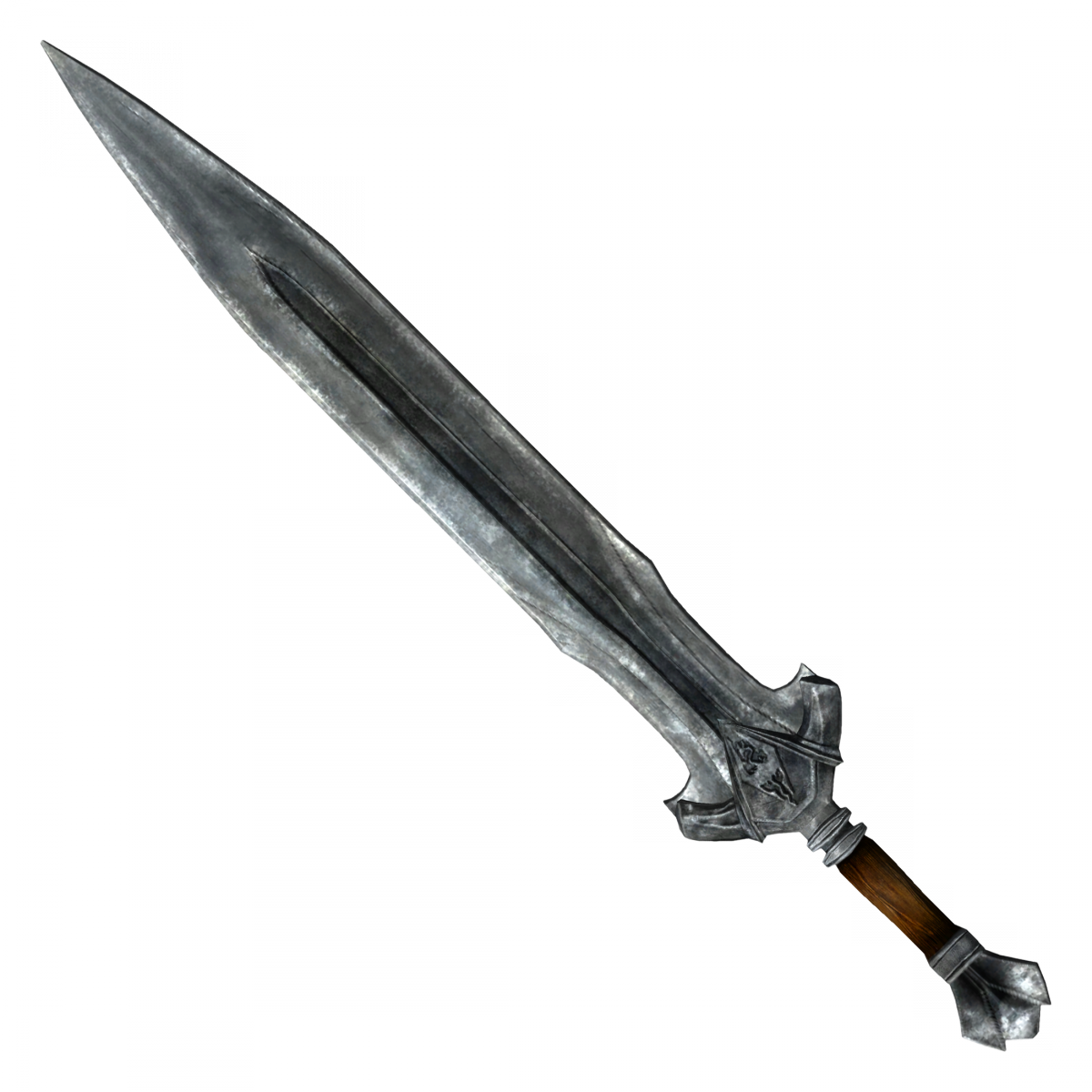
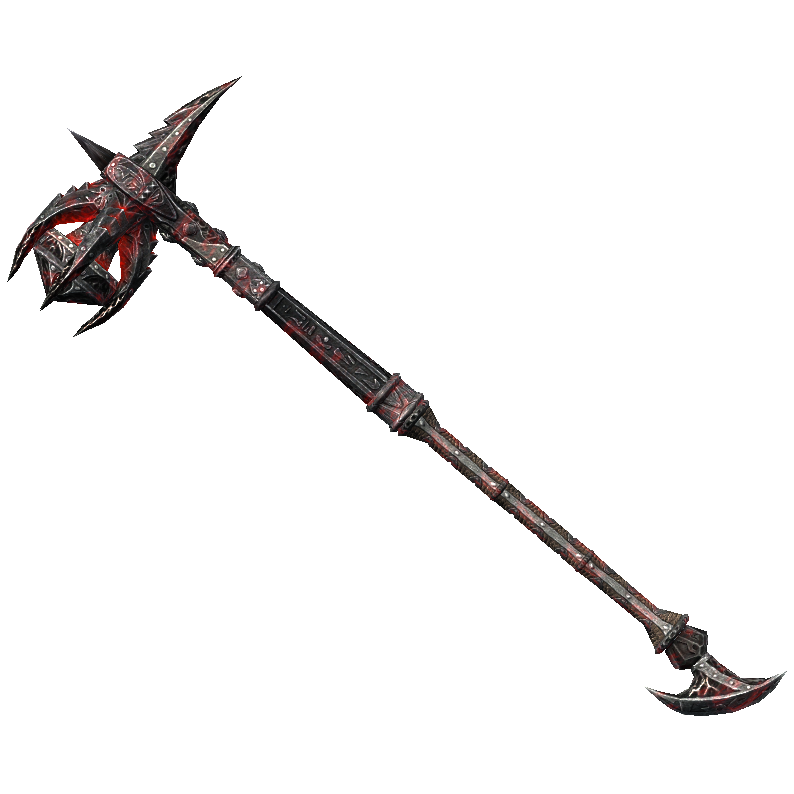
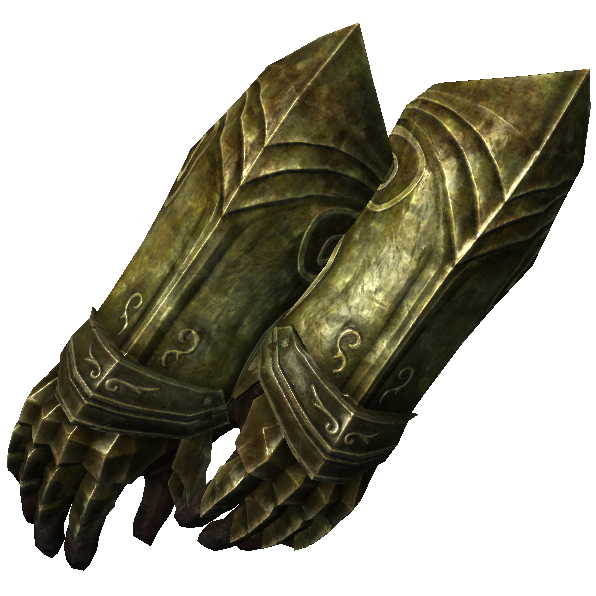
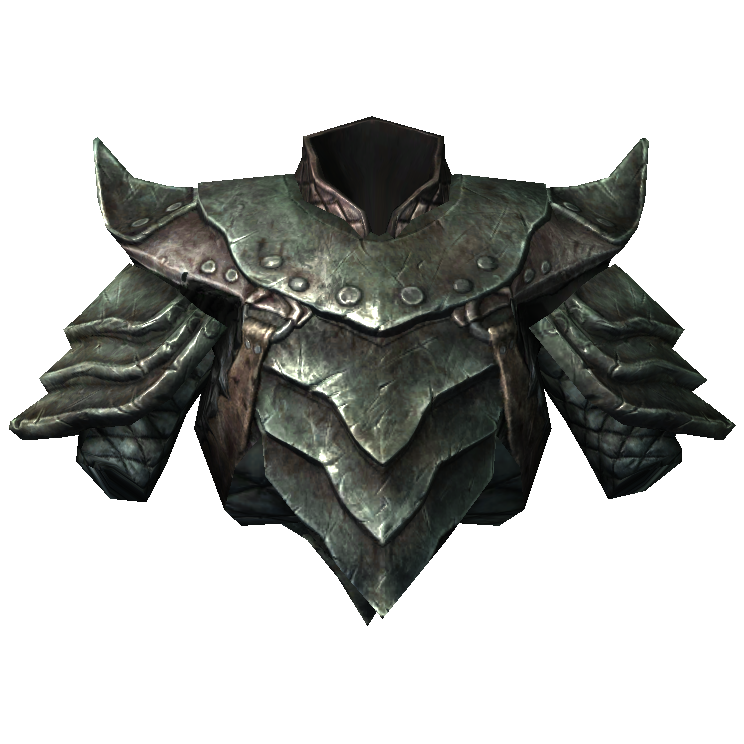
These transitions, like the one you see in the interactive e-commerce cart example below, are achieved through Progressive Enhancement using the View Transitions API. The concept of progressive enhancement is fundamental: the functionality is added as an enhancement layer.
If the user’s browser supports it, the animation occurs;
Otherwise, the user simply sees a standard navigation with no breakage or performance loss.
An additional benefit is that the API natively respects user preferences. If the prefers-reduced-motion option is enabled in the operating system, transitions are automatically disabled, ensuring accessibility without writing a single extra line of code.
Carrello
Bottiglia di Skooma
25.00
Spada Imperiale
23.00
Martello da Guerra Daedrico
2500.00
Guanti Elfici
45.00
Elmo di Ferro
60.00
Scudo della Guardia di Windhelm
45.00
Armatura Orchesca
400.00
Client-Server Interaction: MPA vs. SPA
To appreciate the importance of this API, it’s helpful to review the evolution of web architectures.
Multi-Page Application (MPA)
In the early days of the web, the MPA model was the only one. Browsers were relatively simple clients with less powerful JavaScript engines. Their main job was to render HTML and CSS sent from the server.
Consequently, the entire application state (who you are, what’s in your cart, etc.) had to reside and be managed almost exclusively on the server. With each interaction, the browser requested a completely new page.
sequenceDiagram
participant Browser as User
participant Server as Server
Note over Browser: User clicks a link or submits a form
Browser->>Server: HTTP request for a new page (e.g., GET /products)
activate Server
Note right of Server: The server retrieves the state<br/>(e.g., user session, DB data)<br/>and generates a full HTML page.
Server-->>Browser: HTTP 200 OK Response (sends entire HTML file)
deactivate Server
Note over Browser: The previous page's context<br/>is completely destroyed.<br/>The browser renders the new page from scratch.
Single-Page Application (SPA)
With the evolution of browsers and the growing power of JavaScript, the SPA model emerged. In this architecture, a significant portion of the application state is delegated to the client. The HTML page is loaded only once, and subsequent interactions dynamically update the view using JavaScript, creating a fluid and responsive user experience.
An SPA architecture, where the base page is persistent, allows for free manipulation of the resources allocated by the browser for that tab. Animating an element from state A to state B is therefore a native and relatively simple operation.
sequenceDiagram
participant App JS as JavaScript App
participant Client as Browser
participant Server
%% --- Phase 1: Initial Load ---
Note over Client: User visits the site for the first time
Client->>Server: GET / (Request HTML Shell)
activate Server
Server-->>Client: HTML Shell (base structure)
deactivate Server
Client->>Server: GET /app.js (Request JS Bundle)
activate Server
Server-->>Client: Full JavaScript Bundle
deactivate Server
activate App JS
Note over App JS, Client: Boot (hijack routing)
Note over App JS, Client: Render initial view
%% --- Phase 2: Internal Navigation ---
Note over App JS, Client: User clicks an internal link
Note over App JS: Action intercepted
App JS->>Server: API Call (GET /api/products)
activate Server
Note over Server: Server fetches only necessary data<br/>and responds with JSON.
Server-->>App JS: Data in JSON format
deactivate Server
Note over App JS: Uses JSON to dynamically<br/>update the page's DOM.
Note over App JS, Client: No full page reload
deactivate App JS
The Challenge of Transitions in an MPA
In an MPA, every time you navigate to a new page, the context of the previous page is completely destroyed. All variables, DOM elements, and in-memory states are discarded to make way for the new environment.
This makes it impossible to use JavaScript to animate an element between the two pages.
Although mechanisms like localStorage, sessionStorage, and cookies allow data to persist across navigations, they don’t solve the animation problem. They persist data, not DOM elements, during the brief moment of transition between one page rendering and the next. This is an intrinsic limitation of the browser’s navigation model—a sandbox whose rules we cannot bend.
The Solution: View Transitions API
The View Transitions API was created to overcome this exact limitation. Introduced in Chrome 111 (March 2023) and decently supported in most browsers, it allows you to orchestrate animated transitions even between different documents in an MPA.
With just a few lines of CSS, you can instruct the browser to handle the transition of specific elements.
1. Enable Cross-Page Transitions
The first step is to enable the feature for cross-document navigations. This is done by adding a simple rule in the CSS of both pages (the source and the destination).
This rule tells the browser to intercept same-origin navigations and apply a default transition (a cross-fade).
2. Connect the Elements
The key step is to tell the browser which element on page A corresponds to which element on page B. This is achieved by assigning the same unique value to the CSS view-transition-name property on both elements.
By assigning the same view-transition-name (hero-image-post-123), the browser understands that these two elements are conceptually the same and will animate the transition between their different sizes and positions, creating a fluid and professional effect that was previously exclusive to SPAs.
Notice how the name hero-image-post-123 is specific. In a real application, this value wouldn’t be static but dynamically generated, for example, using the unique ID of the product or article (e.g., hero-image-post-${post.id}). This ensures that each element in the list correctly and unambiguously points to its counterpart on the destination page.
Warning: The view-transition-name property must be unique in the DOM at any given time. If two visible elements share the same name, the browser won’t know how to handle the transition, and the animation will fail.
Dynamic generation based on IDs solves this exact problem. You can create the view-transition-name value dynamically:
By default, the browser applies a cross-fade. However, you have full control over the animation via CSS. Using special pseudo-elements, you can define complex and custom animations.
For example, to change the default page animation to a slide, you could use:
::view-transition-old(root) { animation: slide-from-right 0.5s ease-out;}::view-transition-new(root) { animation: slide-to-left 0.5s ease-in;}/* And you can specifically animate the shared element! */::view-transition-new(hero-image-post-123) { /* The transform animation (scale, position) is handled by the browser. Here you can add more, like a transition on the `border-radius`. */ transition: border-radius 0.5s;}
This opens up infinite creative possibilities that go far beyond the standard effect.
 25.00
25.00